Quick Share doesn’t reach iPhones and AirDrop doesn’t reach Android, so moving things across usually means a cloud app or a chat app that compresses everything. For a link, an address, a code or a paragraph, emailing yourself is a lot of steps for something you want to paste in five seconds.
Copy text from Android to iPhone
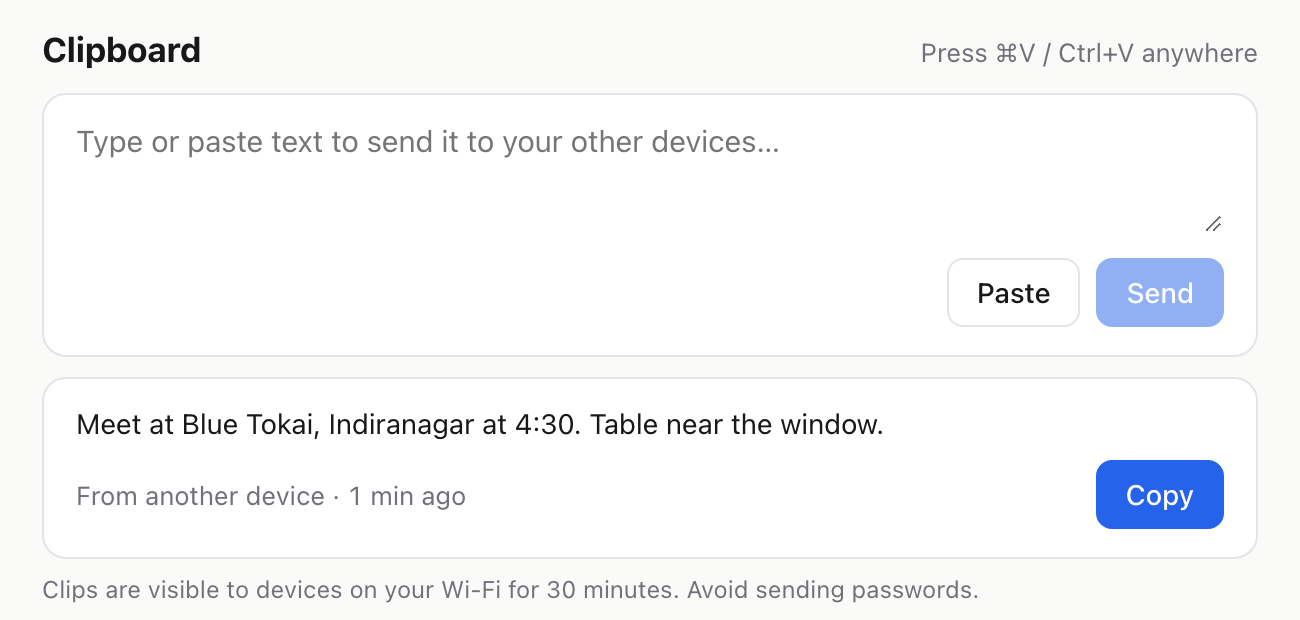
Paste on your Android, tap Copy on your iPhone. A shared clipboard that works in any browser.
Clipboard
Press ⌘V / Ctrl+V anywhereClips are visible to devices on your Wi-Fi for 30 minutes. Avoid sending passwords.
Keep for
On your network
liveLooking for files…
The quick way, with fdrop
- 1
Open fdrop.cc on both devices
Chrome on the Android, Safari on the iPhone. Same Wi-Fi, no login.
- 2
Paste on the Android
Copy the text, open fdrop.cc in Chrome and tap Paste, or type it and tap Send.
- 3
Copy on the iPhone
The text appears under Clipboard within a few seconds. Tap Copy and paste it wherever you need.
Other ways, and their catch
Apple Notes on iCloud.com
Open icloud.com/notes on the Android, paste into a note, and it syncs to the iPhone.
Good: Keeps the text around after you’ve pasted it. Catch: You sign into your Apple ID in a browser, and iCloud.com is clunky on phones.
Google Keep
Paste into a note in Google Keep on the Android and open it on the iPhone (keep.google.com on a computer).
Good: Syncs everywhere you’re signed in. Catch: Needs your Google account on both devices.
WhatsApp or Telegram to yourself
Send it to your own chat (Message yourself in WhatsApp, Saved Messages in Telegram) and open WhatsApp or Telegram on the iPhone.
Good: You probably have the app already. Catch: Needs the app signed in on both devices.
Email it to yourself
Attach it (or paste it) in an email to yourself and open the email on the iPhone.
Good: Works on every device. Catch: Lots of steps for a quick copy, and it clutters your inbox.
Good to know
- Clips hold up to 50,000 characters and disappear after 30 minutes. Anyone on the same Wi-Fi with fdrop open can see them, so don’t send passwords on shared networks.
- Pasting a screenshot instead of text uploads it as a file, so images work the same way.
Questions
How do I copy text from Android to iPhone without a cable?
Open fdrop.cc on both, paste on the Android and tap Copy on the iPhone. Apple Notes on iCloud.com is the main built-in option, with the limits listed above.
Is there a length limit?
Up to 50,000 characters per clip, which is about 20 pages of text. Longer than that, save it as a file and send the file.
Do the Android and iPhone need to be on the same Wi-Fi?
Yes for the clipboard: clips show up on devices that share your internet connection, like home or office Wi-Fi.
Do I need to install an app?
No. fdrop runs in Chrome on the Android and Safari on the iPhone. Nothing to install and no account.
Who can see what I paste?
Only devices on the same internet connection with fdrop open. Clips are deleted after 30 minutes, and you can delete your own sooner.